

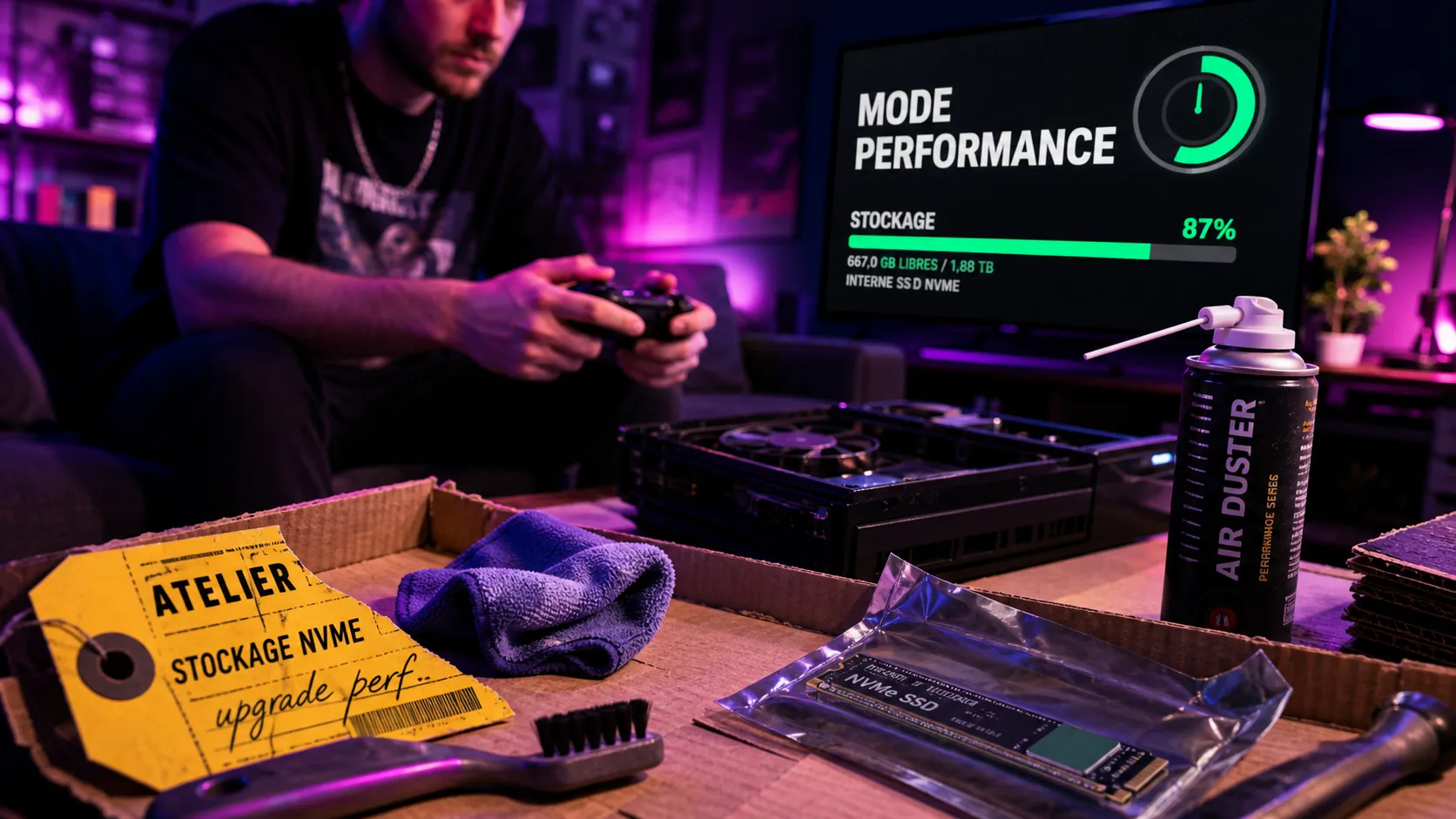
If your console feels slower than it used to, the fix is not always a new machine. Sluggish menus, long load times, frame drops, overheating, and online lag usually come from a few bottlenecks: storage, heat, display settings, background activity, or network quality. Start with the free changes, measure what improves, then spend money only where it clearly helps.
Find the real bottleneck before changing everything
A gaming console is a closed system, so you cannot boost performance the same way you would on a PC. You are optimizing the conditions around the hardware: how fast it can read data, how cool it stays, how cleanly it sends frames to the TV, and how stable the network path is. That means the first step is diagnosis, not random tweaking.
Match the symptom to the likely cause
Slow dashboard navigation often points to cache clutter, low free storage, or pending system updates. Long loading screens usually involve storage speed, especially on older consoles using HDDs. Stuttering during gameplay may come from a game’s graphics mode, poor frame pacing, overheating, or heavy background recording. Rubber-band movement in multiplayer is almost always network latency, jitter, packet loss, or a restrictive NAT type.
| Problem you notice | Most likely area to check first | Best first action |
|---|---|---|
| Menus feel slow | Cache and system software | Restart fully, clear cache, update firmware |
| Games load slowly | Storage | Free space or move games to SSD |
| FPS drops after 20 minutes | Heat | Improve ventilation and remove dust |
| Online lag spikes | Network | Use Ethernet, test ping, check NAT |
| Controls feel delayed | Display and input chain | Enable Game Mode, VRR, and 120Hz if supported |
Do the no-risk reset steps first
Before deleting games or buying hardware, perform a full power cycle rather than using rest mode. Shut the console down, unplug it for a minute, then restart. Clearing cache does not delete save data or games, but it can improve dashboard responsiveness and fix odd behavior after updates. On PlayStation, rebuilding the database can help organize system data; on Xbox, clearing persistent storage and restarting can solve similar slowdowns.
System and game settings that improve responsiveness
The fastest wins are often hidden in settings. You are not overclocking the console, you are choosing lower-latency paths and removing features that steal bandwidth, storage, or processing attention in the background. A few careful changes can make the whole interface feel lighter.
Performance mode vs resolution mode
Many modern games offer a choice between performance mode and resolution or fidelity mode. Performance mode typically targets 60 FPS or 120 FPS by lowering resolution, reducing effects, or simplifying ray tracing. Resolution mode often aims for sharper 4K visuals at 30 FPS or 60 FPS. If you play competitive shooters, racing games, or action titles, performance mode usually feels better because the controller response is more immediate. If you play slower single-player adventures, resolution mode can be worth it for image quality.
Think of input lag as a chain: controller signal, console processing, frame rendering, HDMI transmission, TV processing, then pixel response. A weak link anywhere makes the whole experience feel heavy. This is why a game can show 60 FPS and still feel delayed if the TV is not in Game Mode, if motion smoothing is active, or if the controller firmware is outdated. Optimizing a console is not one magic switch, it is shortening that entire chain from your thumb to the image on screen.
Video output: 120Hz, VRR, HDMI 2.1 and Game Mode
If your console, TV, and game support it, enable 120Hz output for smoother motion. For 4K at 120Hz with VRR, HDMI 2.1 is required. VRR, or Variable Refresh Rate, helps reduce screen tearing and uneven frame pacing when frame rate fluctuates. Also enable ALLM or Game Mode on the TV, which bypasses extra image processing that can add input latency. Avoid motion interpolation, noise reduction, and “cinema smooth” effects for gaming.
Turn off background features you do not use
Automatic captures, long gameplay recording buffers, constant uploads, and aggressive notifications can all add clutter. They will not transform a badly optimized game, but disabling what you do not use can stabilize the experience. Keep system software and controller firmware updated, because console makers often fix performance, compatibility, and network issues through firmware updates. If you stream or record often, leave only the tools you actually use active.
Storage: the upgrade that most visibly cuts waiting
Storage optimization is the clearest way to reduce load times. It will not increase the frame rate of a game that is GPU-limited, but it can make booting, fast travel, texture streaming, and update handling feel much faster. It is also one of the easiest places to see a difference without changing the whole setup.
Free space matters more than most players think
A nearly full drive gives the system less room to manage temporary files, patches, captures, and updates. As a practical rule, keep a comfortable buffer instead of filling every gigabyte. A 1TB drive can fill up after around 10 to 15 AAA games, especially when large updates and high-resolution texture packs accumulate. Delete games you are not actively playing, archive captures, and move older titles to external storage. That simple cleanup often makes the menu and update process feel smoother too.
SSD vs HDD: when it is worth paying
An NVMe SSD can reduce load times by 40-60% compared to a stock HDD, and up to 50% faster load times is a realistic expectation in many storage-bound scenarios. External SSDs can reach read speeds up to 1050MB/s, which is far ahead of traditional external hard drives. On PS5, use compatible internal NVMe storage for current-generation games. On Xbox Series consoles, use the official expansion format for current-generation titles, while USB external drives are useful for storing or running older games depending on compatibility.
- Best free move: uninstall unused games and clear old captures.
- Best budget move: use an external SSD for backward-compatible games and storage overflow.
- Best premium move: add a compatible internal NVMe SSD where your console supports it.
Cloud saves and reinstall strategy
Before deleting anything, confirm that saves are backed up through your console’s cloud save system or copied locally where supported. Reinstalling a game is often cleaner than carrying years of patches, unused DLC, and corrupted temporary data. If one title stutters while others run well, reinstall that specific game before resetting the whole console. This is especially useful when the problem appears after repeated updates.
Network settings for lower lag and faster downloads
Online performance depends less on headline download speed and more on stability. A fast connection can still feel terrible if ping jumps, packets drop, or the router is overloaded by other devices. For gaming, consistency matters more than a big number on a speed test.
Ethernet beats Wi-Fi for competitive play
Over 70% of gamers use Wi-Fi instead of wired, but Ethernet remains the simplest way to reduce latency variation. If you cannot run a cable, place the console closer to the router, avoid putting it behind the TV cabinet, and use a 5GHz or Wi-Fi 6 network when available. Test connection speed and latency from the console if possible, then compare results at different times of day. Even a small placement change can help more than a settings change.
DNS, NAT and port forwarding
Changing DNS can improve download responsiveness for some users. Common choices to benchmark are Cloudflare 1.1.1.1 and Google 8.8.8.8, but the best option depends on your location and ISP. For multiplayer, NAT type matters more than DNS. If your NAT is strict, port forwarding for the games or console services you use can help matchmaking and voice chat. Port forwarding can lower ping by 10-20ms in some setups, especially when the router was handling traffic poorly.
Use QoS when the house is busy
QoS, or Quality of Service, lets a router prioritize gaming traffic over video streaming, downloads, and cloud backups. This is useful if someone is watching 4K video while you play online. Also pause console downloads during ranked matches; a background game update can create packet loss or jitter even when your internet plan looks fast on paper. If the house is busy, QoS can keep the connection steadier without changing your plan.
Keep the console cool, clean and stable over time
Performance optimization is not a one-time task. Dust, heat, and cramped placement gradually reduce stability. Dust buildup can cause thermal throttling and louder fan noise, which means the console is working harder to maintain safe temperatures. Once that starts, frame drops and shutdowns become more likely.
Ventilation rules that prevent throttling
Place the console where air can enter and leave freely. Avoid sealed cabinets, thick carpet, direct sunlight, and stacking devices on top of each other. A console’s operating temperature should stay below 95°F (35°C) in the surrounding environment. If the room is hot, even a clean console has less thermal headroom. Cooling stands can help with organization, but they are not a substitute for open airflow and clean vents.
Clean dust without damaging the hardware
Power off and unplug the console before cleaning. Use a soft brush, microfiber cloth, and short bursts of compressed air around vents, not directly into delicate openings for extended periods. If fan noise suddenly becomes extreme, or the console shuts down from overheating, stop using it until airflow is checked. Replacing thermal paste can help old consoles, but it is more advanced and may affect warranty coverage, so treat it as a repair decision rather than routine cleaning.
Know when a factory reset makes sense
A factory reset should be the last software step, not the first. Consider it if multiple games crash, menus remain slow after updates and cache clearing, or corrupted system behavior keeps returning. Back up saves, note login details, and only then reset. If one game alone performs badly, the cause is more likely that game’s patch, graphics mode, or server condition than your entire console.
For the best result, work in order: update the system, clear cache, free storage, choose performance mode, enable Game Mode and VRR where supported, improve the network, then clean and ventilate the console. Those steps cover the biggest causes of slow load times, lag, input delay, and thermal drops without wasting money on upgrades you may not need.

Articles qui pourraient vous intéresser :
 Pokémon évolution prismatique prix : guide et astuces pour bien évaluer vos cartes
 far escape : comprendre le jeu, son succès et ses mécaniques
 Wrath & Glory ou Imperium Maledictum : choisir entre action héroïque et enquête mortelle
 Sorts de D&D en D : 5 stratégies tactiques pour maîtriser vos incantations